
For some scenarios there may be a need to merge multiple Control Tower-managed LZs, for instance:
- Several company departments have started creating LZs independently, and now there are multiple LZs within a single company
- A company has acquired another business, and both organizations have Control Tower-managed LZ in AWS
- A company has executed a PoC in a separate LZ, and that PoC has evolved into a production system
There is no documentation or graphical user construct in the dashboard found in Control Tower to migrate an account. The workflow to migrate a Control Tower implementation from account to another is complicated. Worse an error in executing the, undocumented, process can lead to additional downstream errors when enrolling a new account.
To save you the time and trouble of trying to accomplish this non-trivial task by trial and error, we will share a method we have used successfully for our customers to migrate accounts from one Control Tower LZ to another in six simple steps, outlined below.
We should note that in our understanding it is not currently possible to migrate a Master account as a sub-account under a second Master account.
First, let’s define some simple terms and conditions:
Initial Account
Account: A-0
Control Tower and Landing Zone: A-0/CT-0
Organization: A-0/ORG-0
Final Account
Account: B-0
Control Tower and Landing Zone: B-0/CT-0
Organization: B-0/Org-0 (Org B)

The first assumption is you are logging in as an Administrator (arn:aws:iam::aws:policy/AdministratorAccess)
The second assumption is you have a minimum of a “Developer” support plan.
Step 1. Leaving an AWS Organization B-0/ORG-0
The first order of business is for the account to leave the originating Organization. There are two ways to accomplish this:
- Log into Account B-1 in question, go to AWS Organizations, and click Leave.
- Log into the B-0 master account, go to AWS Organization, select the account that is moving, and click “delete”.
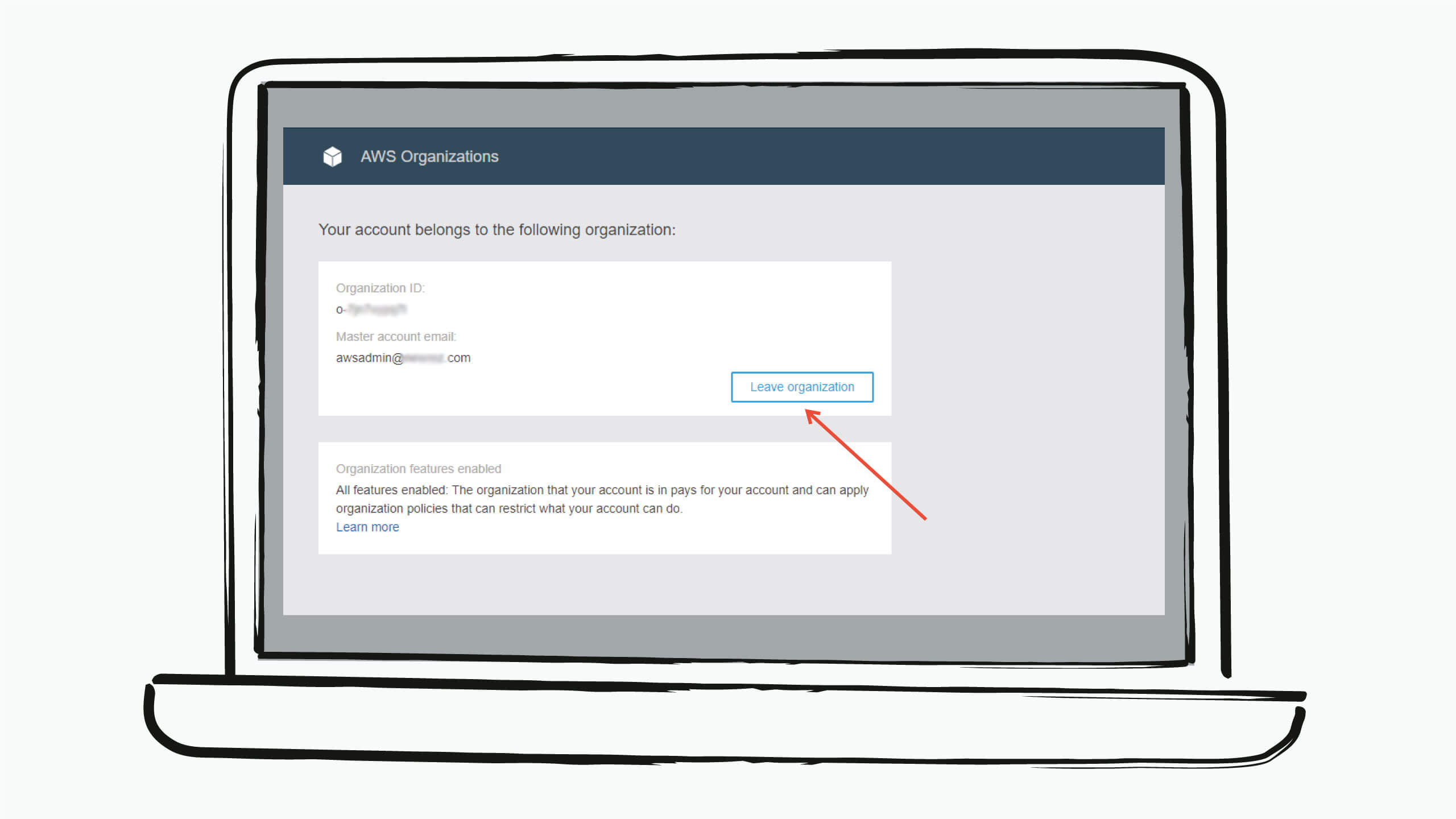
Something to keep in mind is that before an account is able to leave an organization, the account is effectively being set adrift from a billing point of view, so the pre-requisite sign-up steps must be completed, as if you were setting up a new account with AWS:
- Provide contact information
- Accept the AWS Customer Agreement
- Provide a valid payment method
- Verify the phone number
- Select a support plan option
If the account you are migrating was not originally created using Control Tower, that streamlined process does not require the account owner to complete these sign-up steps. Therefore, for Control Tower-created accounts, option #2 won’t work, and our only choice is option #1 (see picture above). After clicking “Leave”, AWS will prompt you to complete the sign-up steps. The process is clearly described in this document.
Step 1.1 (Optional) Repairing Control Tower B-0/CT-0
In most cases the assumption is that the intention is to keep B-0 and the Control Tower within it. If you’re planning to abandon Account B-0 altogether, then skip this step.
Control Tower should only be repaired once all accounts have been moved and migrated. After removing the accounts, Control Tower enters into a “Drift” state because it can’t find some of its accounts. So, act on all the accounts you intend to remove from Organizations before doing the repair or you will have to repeat the repair process.
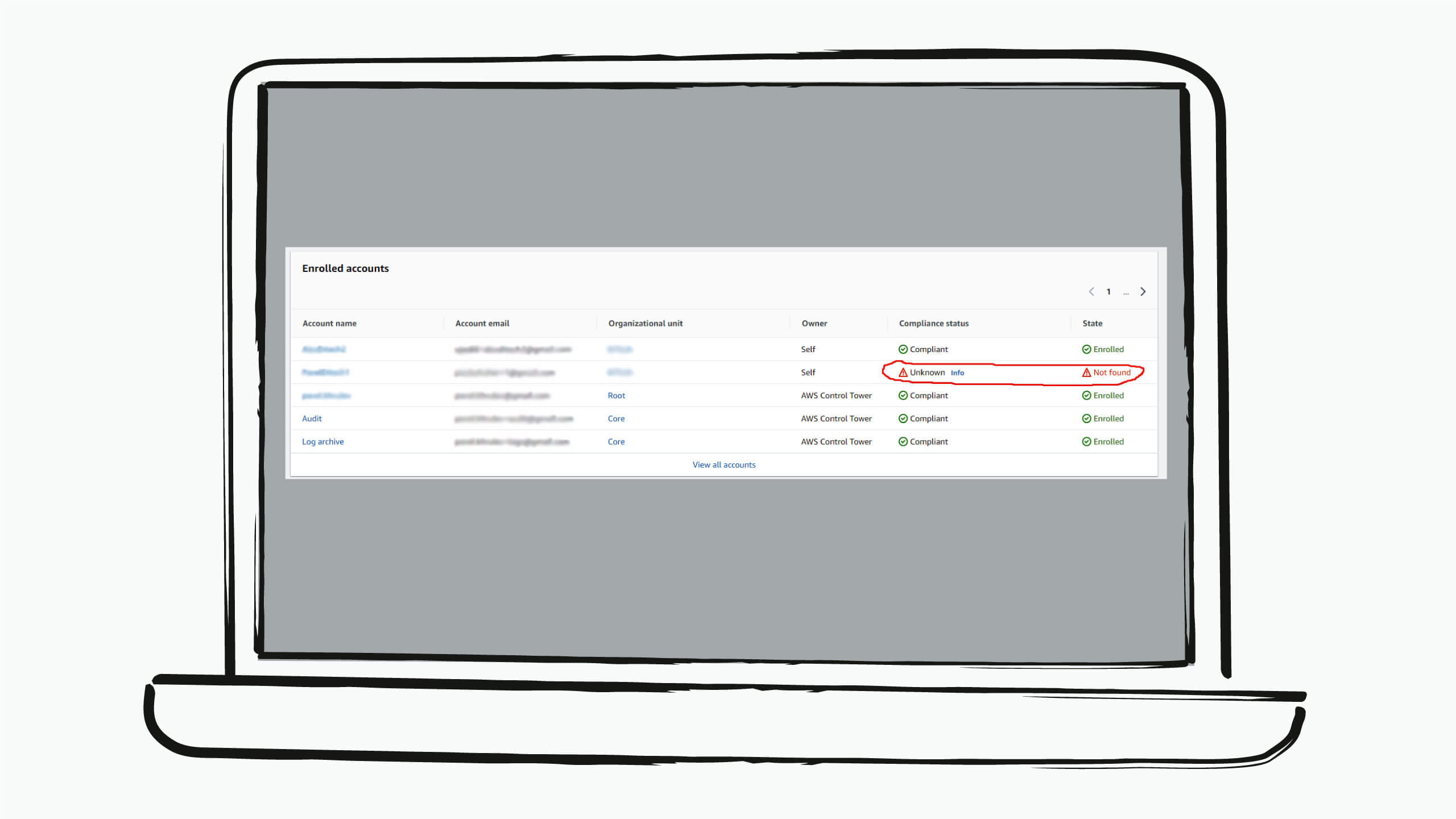
To fix this, go to Control Tower -> Settings, select the latest version and then click the “Repair” button.
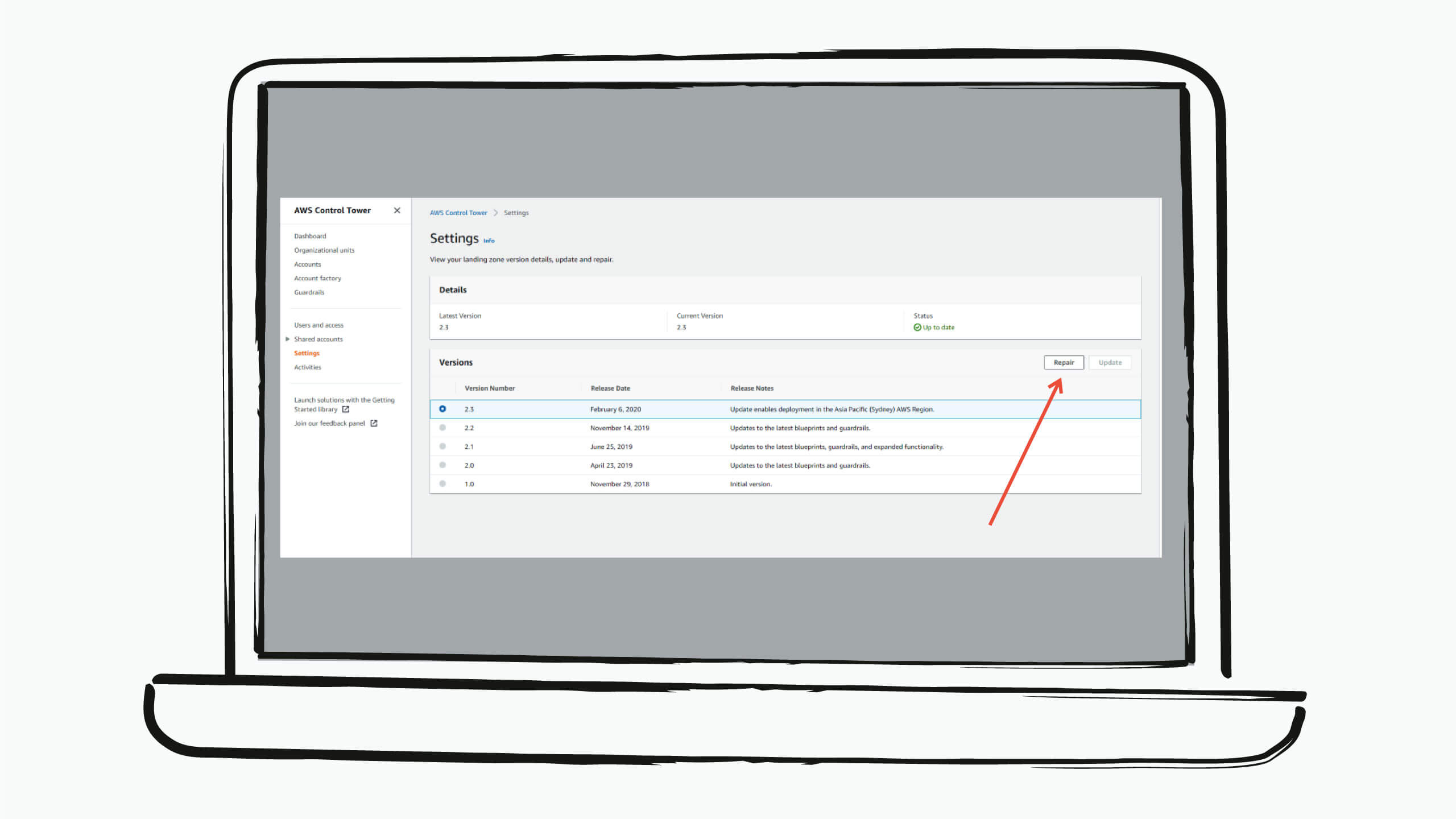
This automatically returns Control Tower to the normal state and within an hour removes any missing accounts from its dashboard.
Step 2. Scrubbing the account
At this stage, the migrating account no longer belongs to any AWS Organization, but still has some resources created by CT A. This can lead to errors when trying to enroll the account into CT B, and therefore they need to be deleted. These resources include Roles created by Control Tower, AWS Config and CloudWatch Log groups created by Control Tower. All of these are created by CloudFormation stacks and can be deleted by removing the appropriate stacks.
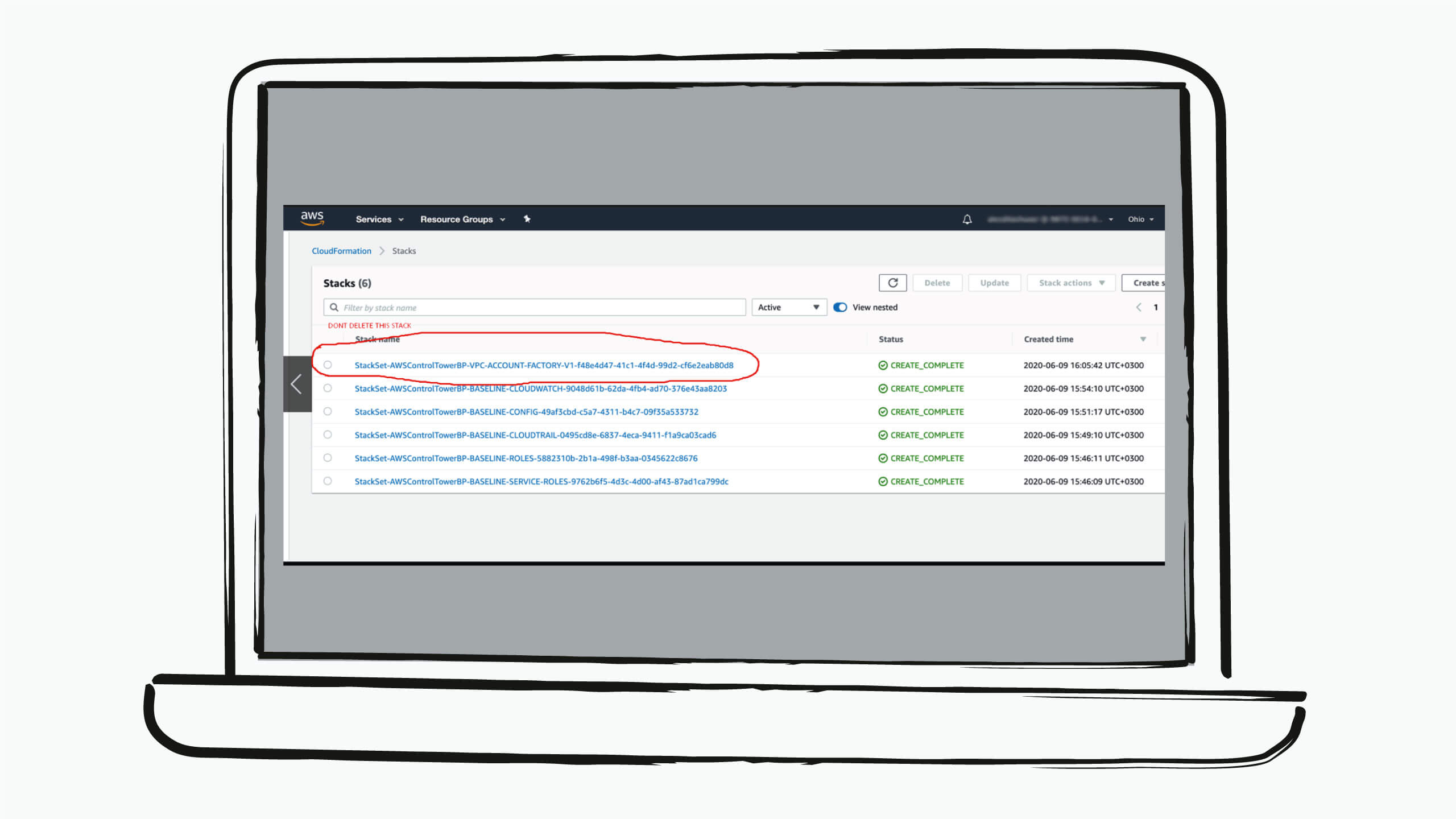
All stacks can be easily deleted with the following name pattern: StackSet-AWSControlTower*, EXCEPT THE VPC ACCOUNT FACTORY. In most cases, the VPC contains workloads, and so it should only be deleted if there are no resources in the VPC. A-0/CT-0 will accept an existing VPC without any problems and will not create a new one.
Step 3. Setting up trust permissions in the new Master Account - A-0/CT-0
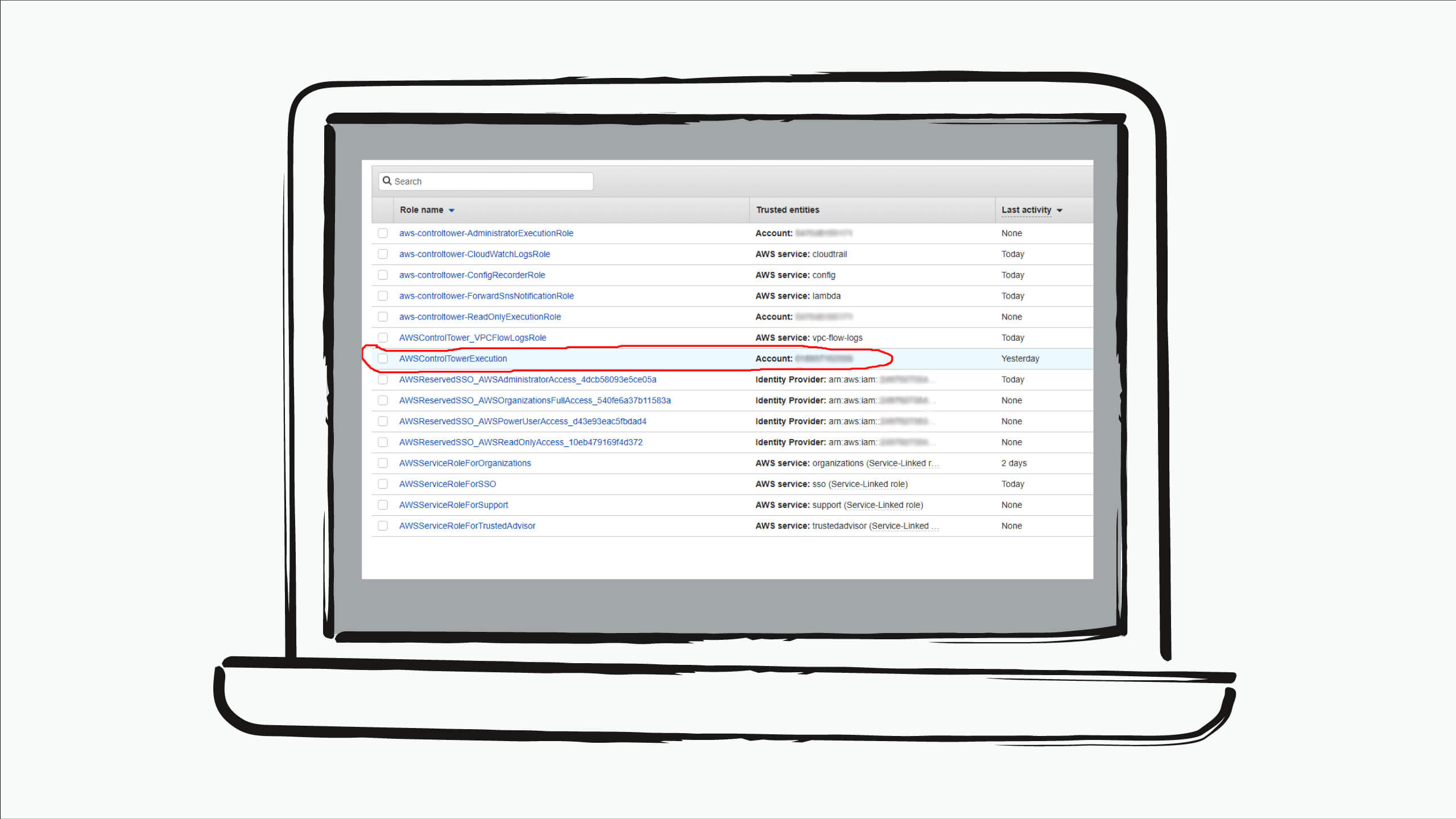
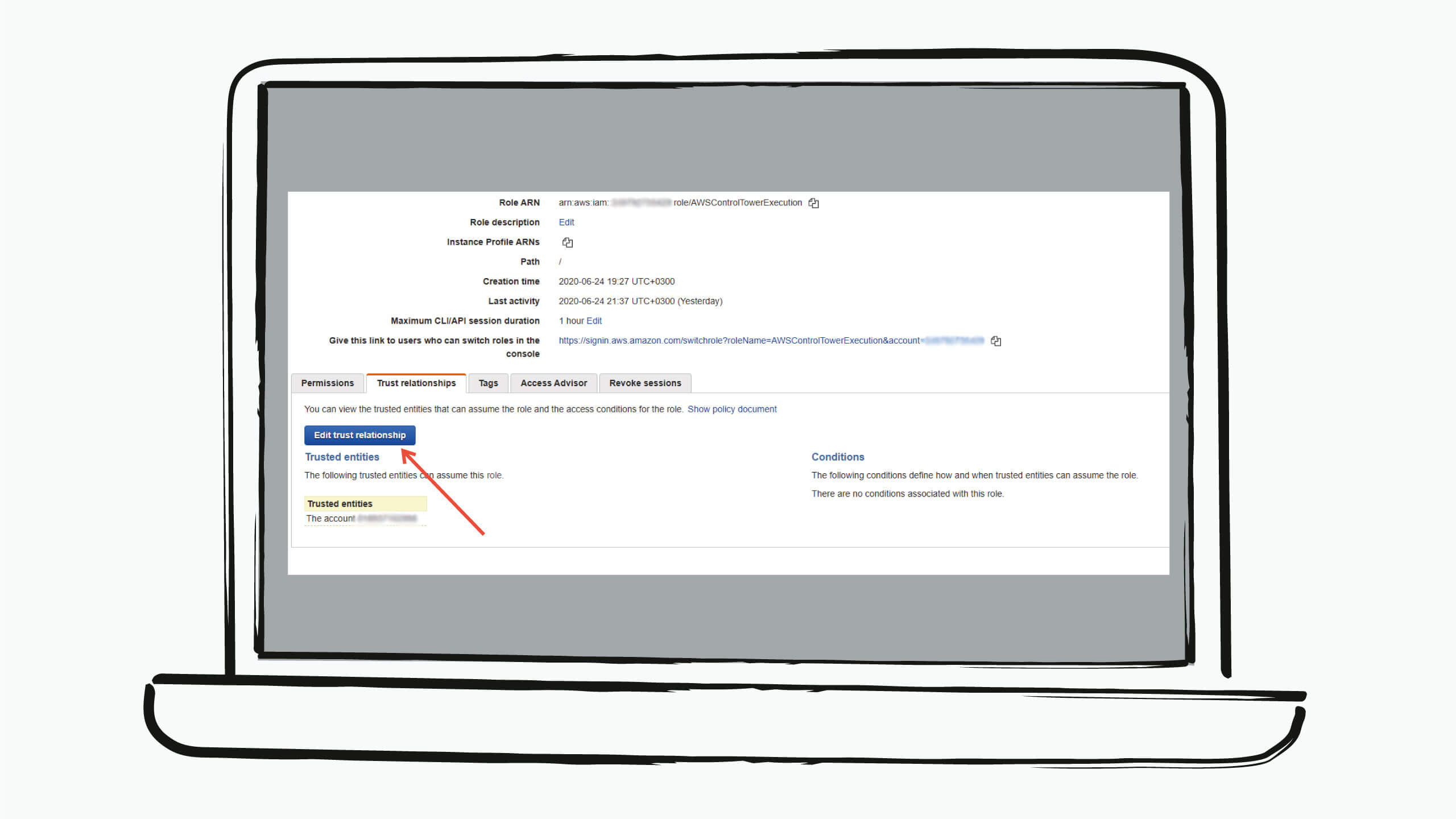
In order to grant permissions to A-0/CT-0 to make changes to the account, you should create a role with trust permissions. This role has already been created by A-0/CT-0, that still has permission to do anything to the account. All we need to do now is to change the ID of the trust account in this IAM Role to the ID of A-0 master account.
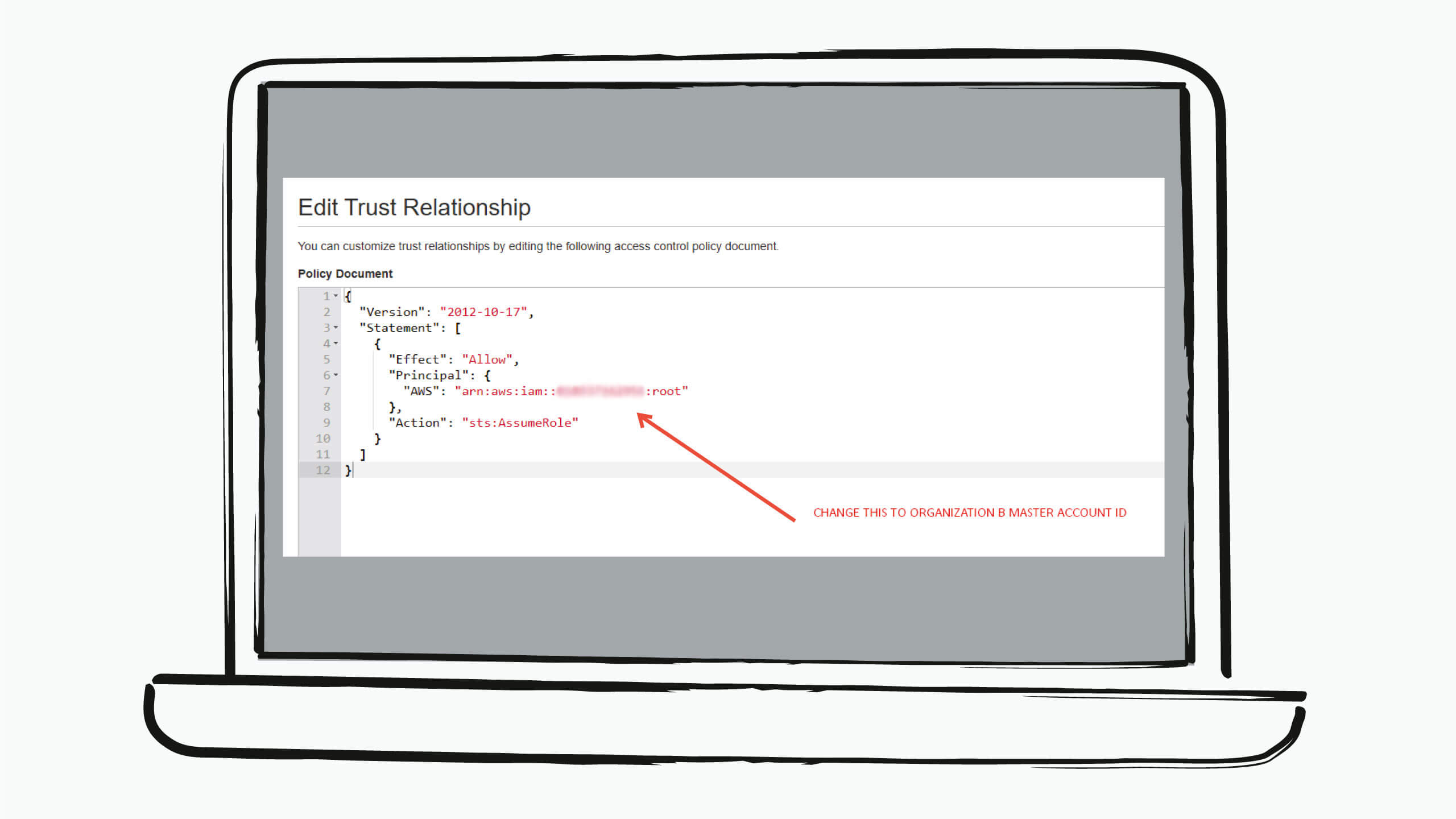
Step 4. Preparing Organization B
Before we can add the account to A-0/CT-0, we need to prepare A-0/Org-0. Log into the A-0 master account, go to AWS Organizations -> Settings, and enable Trust permissions for AWS CloudFormation StackSets. It must be enabled to allow provisioning for the existing account (if it’s not, provisioning will fail).
Step 5. Inviting the account to A-0/Org-0
Now, A-0/Org-0 should be invited to join, and the account should accept the invitation. These simple steps are perfectly described here.
Step 6. Provisioning the account in A-0/CT-0
The account is now in Org B, but the Control Tower B doesn’t know anything about it and does not control it. The last step is to provision the account.
Log into Master Account B, go to Control Tower -> Account Factory and click Enroll Account. You will have to fill in the enrollment form as usual, and use the email of existing account of your organization. The account will be enrolled as per the normal process, with guardrails, AWS config, and other items created by Control Tower B. The VPC, if it exists, will not be affected.
Your account has now been successfully migrated and is under the control of A-0.
Merging Control Towers
If the objective is to completely merge two Control Tower LZs, then we recommend migrating all the accounts one by one, except for the Log Archive, Audit, and Master accounts. Control Tower B has its own Audit and Log Archive accounts. Logs from Log Archive Account A can be moved to the bucket of Log Archive Account B by sharing the buckets between accounts and using the AWS CLI “aws s3 sync” command. You can find the description of buckets sharing here.
Additionally, read up on the S3 sync utility here.
Decommissioning a Control Tower B-0/CT-0
In order to decommission Control Tower B-0/CT-0, you must raise a ticket via AWS Support. AWS Support will require the Master Account ID and a clear reason for the decommissioning B-0/CT-0, so make sure those details are provided in the ticket. Once this process runs its course, you will see the “Decommission Landing Zone” button appear in the Control Tower. This process usually takes about one week. Once the button is there, go to Control Tower -> Settings and follow the steps of the decommissioning process.
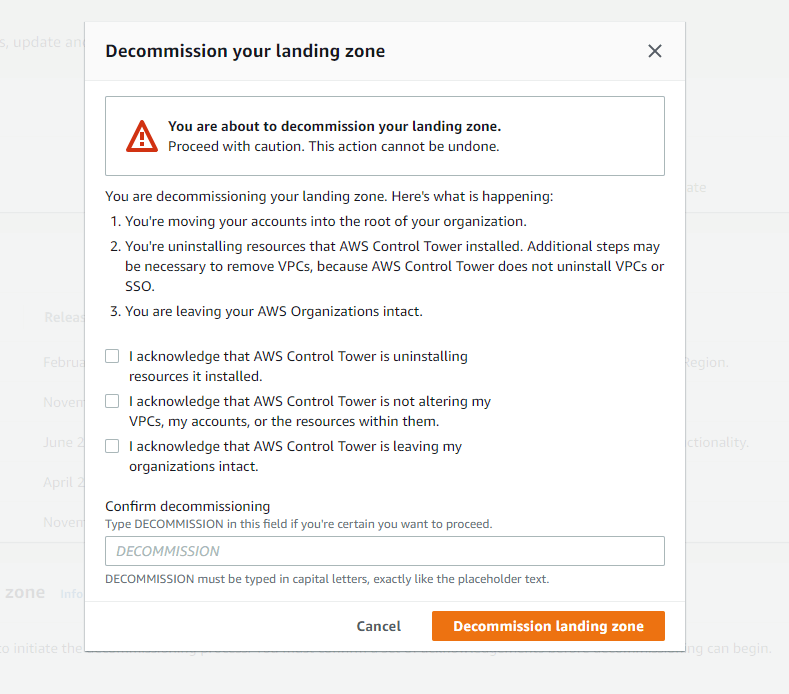
After the Control Tower has been decommissioned, all its accounts (Audit, Master, Log Archive) can be removed from the organization, and it can be closed.
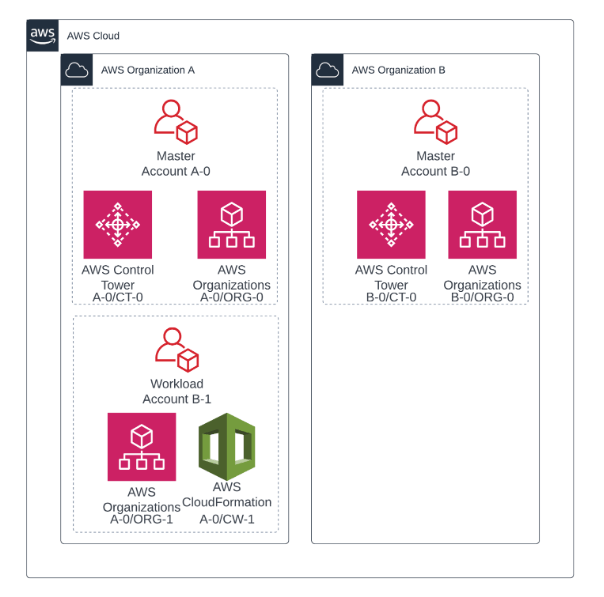
The new structure looks like this:
That’s the process to migrate an AWS Account from one Control Tower LZ to another. As you can see, the process is quite straightforward and does not require any complicated automation or writing code. By following these simple steps, 2 or more Control Towers can be merged into one, enabling your company to consolidate your account structure and governance in the AWS.